
Scatter plots are arguably the most powerful tool in a data scientist's arsenal. They don't just show data points; they tell stories about relationships, correlations, and clusters that might otherwise go unnoticed.
While there are many libraries out there, Matplotlib remains the grandfather of Python plotting – powerful, flexible, and essential to master. But let's be honest: the default Matplotlib styles can look a bit... 1990s.
In this guide, I'll walk you through how to create a scatter plot that not only displays your data accurately but looks professional and presentation-ready.
Prerequisites
Before we dive in, make sure you have Python installed and the necessary libraries. If you haven't already, fire up your terminal:
bashpip install matplotlib numpy pandas
We'll use
numpyStep 1: The Basic Scatter Plot
Let's start with the absolute basics. Here is the "Hello World" of scatter plots.
pythonimport matplotlib.pyplot as plt import numpy as np # Generate random data x = np.random.rand(50) y = np.random.rand(50) plt.scatter(x, y) plt.show()
This works, but it's plain. It gets the job done for quick data exploration, but you wouldn't want to put this in a client report or a publication.
Step 2: Adding Meaning with Color and Size
A scatter plot becomes truly powerful when you encode more dimensions into it. You're not limited to just X and Y coordinates; you can use color and size to represent third and fourth variables.
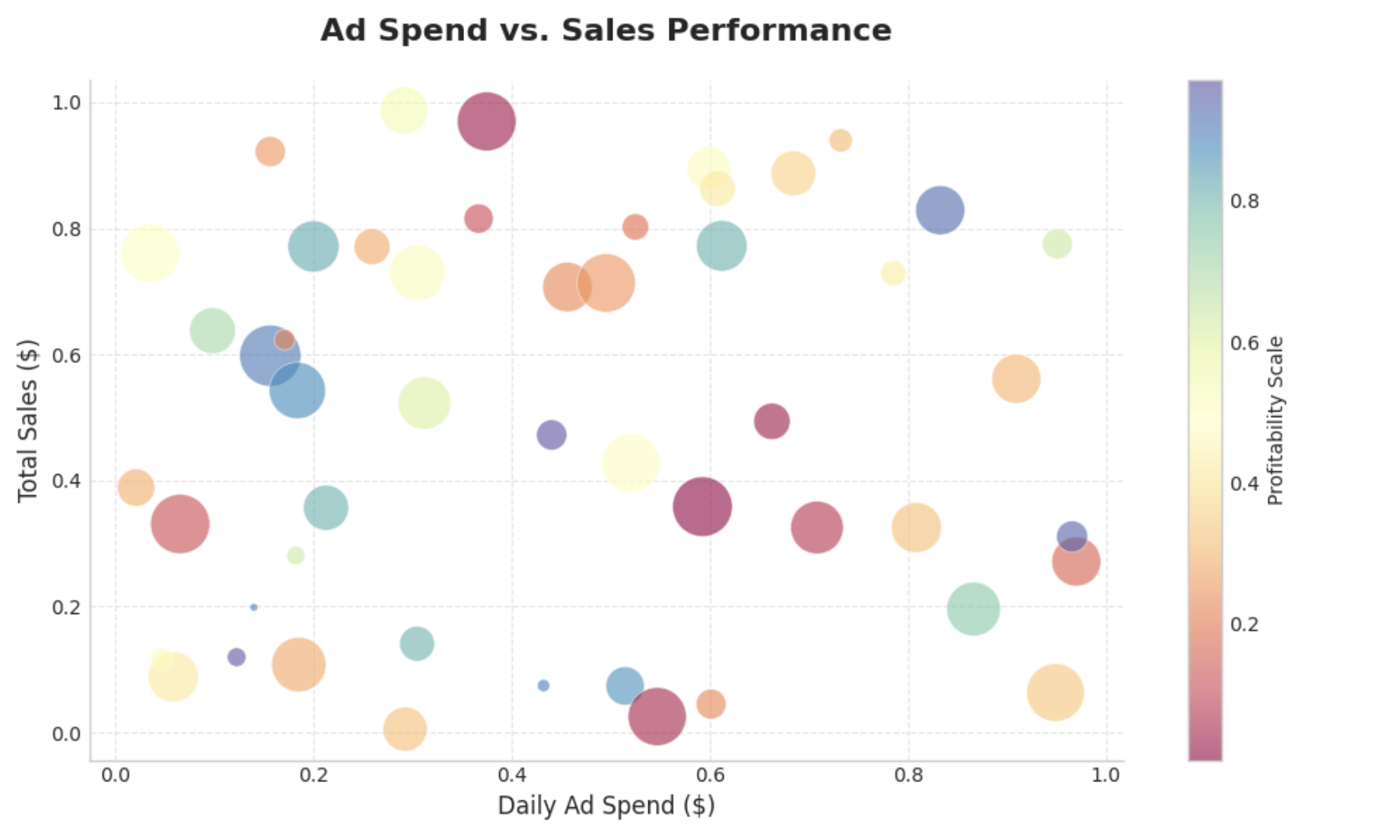
Let's say we want to visualize the correlation between Ad Spend (X) and Sales (Y), where the size of the bubble represents Market Size, and the color represents Profitability.
python# Enhanced data colors = np.random.rand(50) sizes = 1000 * np.random.rand(50) plt.scatter(x, y, c=colors, s=sizes, alpha=0.5, cmap='viridis') plt.colorbar(label='Profitability Scale') # Show the color scale plt.show()
We added
alpha=0.5Step 3: Making It Beautiful (UI/UX)
In the context of data viz, "good UI" means readability and aesthetics. Let's ditch the default style and customize the chart to look modern.
Matplotlib has built-in styles, but manually tweaking the grid and fonts gives the best results.
python# Set a clean style plt.style.use('seaborn-v0_8-whitegrid') plt.figure(figsize=(10, 6)) # Customizing the plot plt.scatter(x, y, c=colors, s=sizes, alpha=0.6, cmap='Spectral', edgecolors='w', # White edge makes points pop linewidth=0.5) # Adding labels with better fonts plt.title('Ad Spend vs. Sales Performance', fontsize=16, fontweight='bold', pad=20) plt.xlabel('Daily Ad Spend ($)', fontsize=12) plt.ylabel('Total Sales ($)', fontsize=12) # Customizing the grid plt.grid(True, linestyle='--', alpha=0.7) # Remove top and right spines for a cleaner look plt.gca().spines['top'].set_visible(False) plt.gca().spines['right'].set_visible(False) plt.show()
Conclusion
Creating a scatter plot in Python is easy, but creating a great one takes a bit of extra care. By adjusting transparencies, choosing the right colormaps, and cleaning up the chart junk (like unnecessary spines), you can turn a simple plot into a compelling data story.
Final Complete Code
Here is the complete snippet you can copy and run to generate the beautiful scatter plot we built today.
pythonimport matplotlib.pyplot as plt import numpy as np # 1. Setup the data np.random.seed(42) # for reproducibility x = np.random.rand(50) y = np.random.rand(50) colors = np.random.rand(50) sizes = 1000 * np.random.rand(50) # 2. Set the style # Note: Styles may vary by matplotlib version. # Check plt.style.available for options on your system. plt.style.use('seaborn-v0_8-whitegrid') # 3. Create the figure plt.figure(figsize=(10, 6)) # 4. Plot the data scatter = plt.scatter(x, y, c=colors, s=sizes, alpha=0.6, cmap='Spectral', edgecolors='w', linewidth=0.5) # 5. Add specific aesthetics plt.colorbar(scatter, label='Profitability Scale') plt.title('Ad Spend vs. Sales Performance', fontsize=16, fontweight='bold', pad=20) plt.xlabel('Daily Ad Spend ($)', fontsize=12) plt.ylabel('Total Sales ($)', fontsize=12) # 6. Refine the grid and axes plt.grid(True, linestyle='--', alpha=0.5) plt.gca().spines['top'].set_visible(False) plt.gca().spines['right'].set_visible(False) # 7. Show result plt.show()
Remember, the goal of any visualization is clarity. Only add complexity (like color or size variations) if it adds information. Happy coding!
Build your scatter plot in seconds - free, no signup.